
Example: tracking invasive species
The Biosecurity Watch sample workspace is a regional biosecurity and orchard monitoring programme. Participating farms and growers report invasive species they find, such as Japanese knotweed, Asian hornets and spotted lanternflies. Field crews record each sighting on a phone with its position and photos, and coordinators draw quarantine zones around the infested areas. This page walks through the sample, and then shows the same work through the API.
The sample uses two features that are described elsewhere: location and area fields (maps) and Attachments fields (photos). Every record in it is invented, but the coordinates are those of real towns, so the maps look right.
The workspace is created on a fresh install together with Northwind Traders. To add it to an existing install, stop the server and run
abidata demo --owner you@example.com --kind invasives, or give everyone a copy with Biosecurity Watch for everyone… in the admin console's Workspaces tab.
What is in the sample
| Table | Holds |
|---|---|
| Suppliers | The participating farms and growers. Each has a Location (a point on the map). |
| Species | Name, scientific name, category, risk level and notes. |
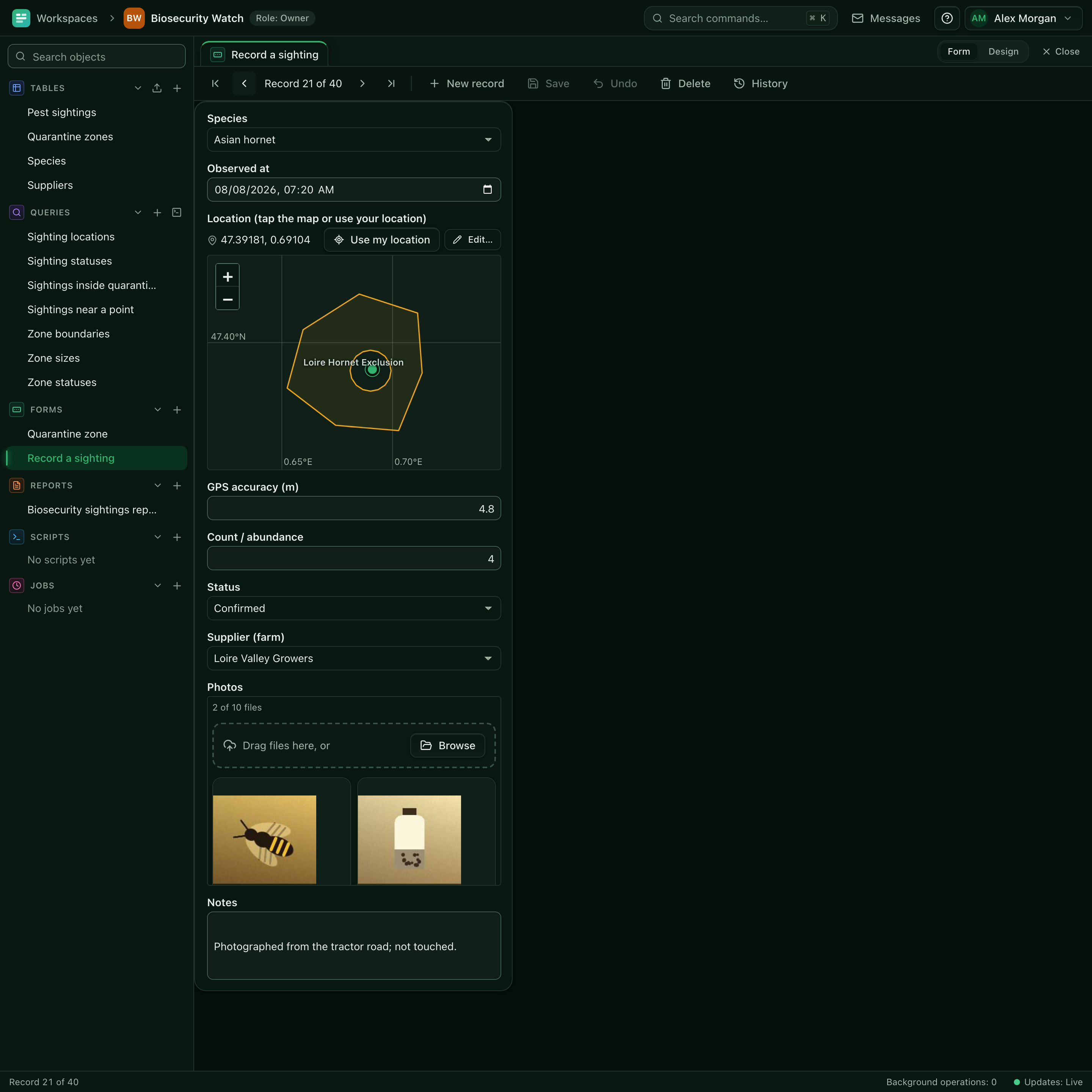
| Pest sightings | Species, Observed at, Location (a point), GPS accuracy (m), count, status, supplier, Photos (up to 10) and notes. About 40 sightings over the last six months, clustered around four farms. |
| Quarantine zones | Name, Boundary (an area), species, declared on, status (Active or Lifted) and notes. Three zones; the Loire zone has a hole, an orchard block that is treated separately. |
The status of a sighting is Reported, Confirmed, Treated or Cleared. The sample also holds a few small saved queries that feed the forms: Zone boundaries, Sighting locations, Sighting statuses and Zone statuses.
Record a sighting on a phone
Open Record a sighting from the navigation drawer. On a phone the form is one column, with the map and the photo gallery full width.
- Choose the Species. Observed at is filled in with the current time; change it if you are reporting an earlier find.
- Tap Use my location. The browser asks for permission the first time (it needs HTTPS, or
localhost). The point appears on the map and the GPS accuracy (m) field is filled in from the device. You can also tap the map, drag the marker, or choose Edit… to type the coordinates. - Look at the map: the outlines are the quarantine zones, drawn from the Zone boundaries query, so the crew can see at once whether they are inside one.
- Enter the Count / abundance, the Status and the Supplier (farm).
- Under Photos, tap Take photo. The camera opens, and the photo is uploaded and shown as a thumbnail. Take several; tap a thumbnail for the full-screen viewer.
- Add notes and tap Save.
Base map tiles are off by default, so the map shows the shapes on a graticule of latitude and longitude lines. An administrator can add a tile source under Admin > Settings > Maps; see Map controls.
Draw a quarantine zone
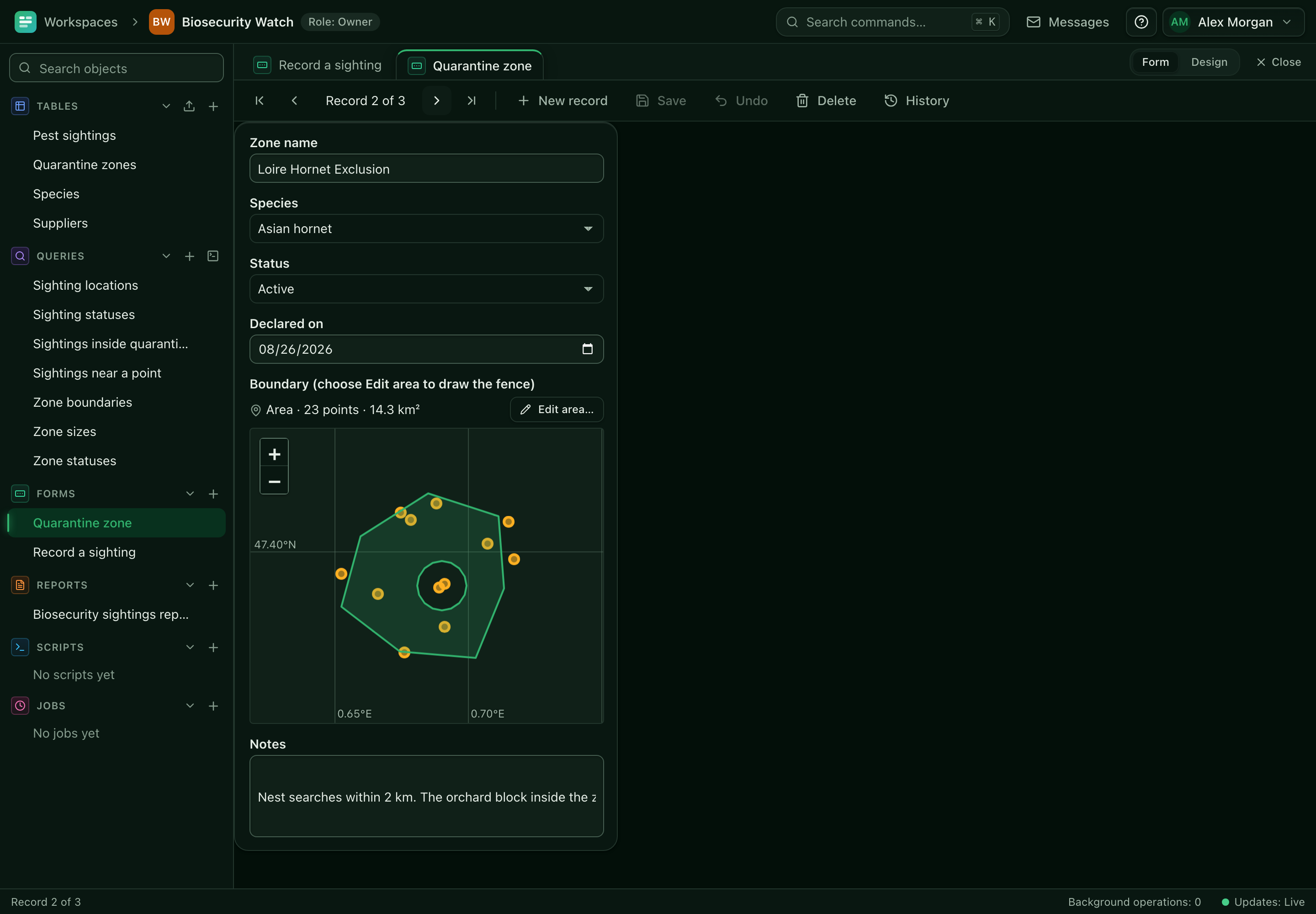
Open Quarantine zone. The form shows one zone at a time, with its Boundary on a map. The sightings are drawn as dots over it (an overlay from the Sighting locations query), which helps when you decide where the fence goes.
- To add a zone, choose New record, enter the name, species and status, and choose Edit area… under the map.
- In the area editor, click to add corners, drag a corner to move it, and press
Deleteto remove one. Add part draws a second polygon, and the Corners list lets you type the coordinates instead of drawing. - To exclude an area, draw a hole inside the outline. The Loire zone in the sample has one: sightings inside the hole are not counted as being in the zone.
- Save the record. The area is stored as GeoJSON, and its size appears in the datasheet, for example
Area · 23 points · 14.3 km².
Query the data
Three saved queries answer the usual questions.
Sightings inside quarantine zones is a visual query. It joins Pest sightings to Quarantine zones with a spatial join ("Location is within Boundary"), and shows the zone, species, time and status. A sighting that falls inside a hole, or outside every zone, does not appear. Open the query in Design to see the join: it is the line between Location and Boundary, labelled within.
Sightings near a point is a SQL query. It asks for three parameters, :lat, :lon and :metres, and lists sightings within that distance, nearest first:
SELECT sp.Name AS Species, s.Observed_at, geo_distance_m(s.Location, geo_point(:lat, :lon)) AS "Distance (m)"
FROM Pest_sightings s JOIN Species sp ON sp.id = s.Species
WHERE geo_distance_m(s.Location, geo_point(:lat, :lon)) <= :metres
ORDER BY 3
Try 51.27, 0.52 and 5000 to find what was seen within 5 km of the Kent farm. The geographic SQL functions (geo_point, geo_distance_m, geo_within, geo_area_m2, geo_centroid, geo_bbox) are also available in calculated fields and visual-query expressions.
Zone sizes uses geo_area_m2 to show each zone's area in hectares, together with the number of sightings inside it.
The report
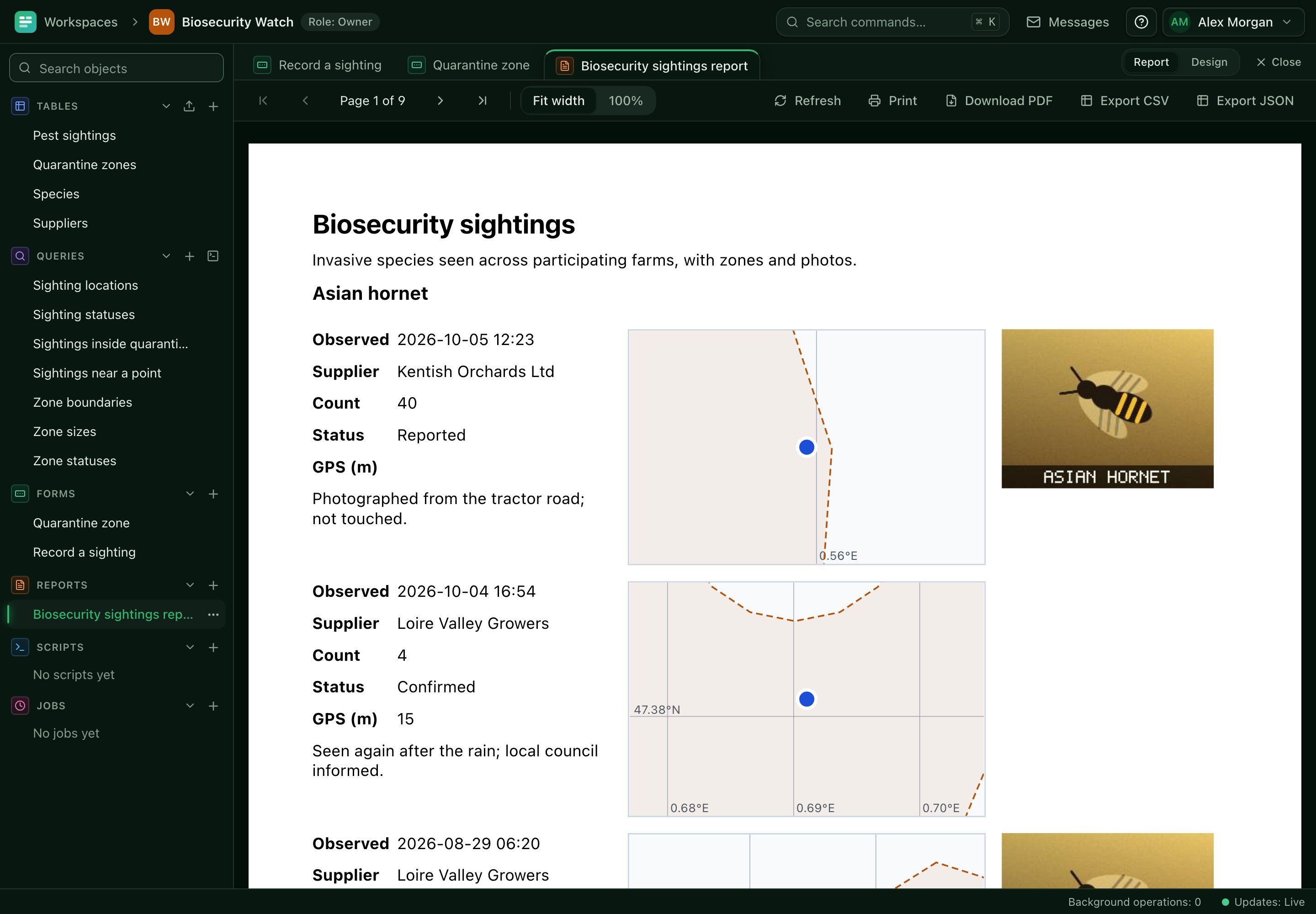
Biosecurity sightings report groups the sightings by species. Each sighting prints its details, a Map control that shows its location with the quarantine zones as an overlay, and an Image control with its first photo. A group footer counts the sightings of the species. Maps in a report are drawn as SVG, so they print and save as PDF reliably.
Use the API
The same data can be written from other programs, such as a field app or an identification service. Create an API key with the editor role, and set up the shell:
export ABIDATA=https://abidata.example.com
export WS=01J9Z3K8M2N4P6Q8R0S2T4V6W8     # the Biosecurity Watch workspace id
export KEY=abd_01J9Z3...
H=(-H "Authorization: Bearer $KEY" -H "Content-Type: application/json")
curl -sS "${H[@]}" "$ABIDATA/api/v1/w/$WS/schema"     # find the table and field ids used below
The tables and fields are addressed by id, as in the API guide. In the commands below $T is the id of Pest sightings, and $SPECIES, $WHEN, $WHERE, $ACC, $PHOTOS and so on are the ids of its fields.
1. Upload a photo. The name goes in X-File-Name. The answer carries the file id; the file is pending until a record refers to it.
curl -sS -X POST -H "Authorization: Bearer $KEY" \
  -H "X-File-Name: hornet-nest.jpg" --data-binary @hornet-nest.jpg \
  "$ABIDATA/api/v1/w/$WS/files"
# {"id":"01J8Z0...","name":"hornet-nest.jpg","content_type":"image/jpeg","state":"pending",...}
2. Create a sighting with a location and the photo. A location is a GeoJSON point ([longitude, latitude]); {"lat": .., "lon": ..} and "lat, lon" are accepted too. An attachments field takes a list of file ids.
curl -sS -i "${H[@]}" -X POST "$ABIDATA/api/v1/w/$WS/tables/$T/rows" \
  -H "Idempotency-Key: 6e1c0a44-0000-4000-8000-0123456789ab" \
  -d '{"fields": {
        "'$SPECIES'": 2,
        "'$WHEN'": "2026-10-11T08:30:00Z",
        "'$WHERE'": {"type": "Point", "coordinates": [0.5311, 51.2756]},
        "'$ACC'": 6.5,
        "'$STATUS'": "Reported",
        "'$PHOTOS'": ["01J8Z0..."]
      }}'
The species is the id of a row in Species; look it up with GET .../tables/$SPECIES_TABLE/rows. The new row's response includes its id and _version, which you need to change it later (see Update a row).
3. Find sightings within an area. The within filter takes a GeoJSON polygon, so you can send a zone's boundary or any shape you like. It matches locations inside it, with holes excluded.
curl -sS -G "${H[@]}" "$ABIDATA/api/v1/w/$WS/tables/$T/rows" \
  --data-urlencode 'filter={"col":"'$WHERE'","op":"within","value":
    {"type":"Polygon","coordinates":[[[0.45,51.22],[0.60,51.22],[0.60,51.31],[0.45,51.31],[0.45,51.22]]]}}' \
  --data-urlencode "limit=100"
4. Find sightings near a point. near takes a centre and a distance in metres:
curl -sS -G "${H[@]}" "$ABIDATA/api/v1/w/$WS/tables/$T/rows" \
  --data-urlencode 'filter={"col":"'$WHERE'","op":"near","value":{"lat":51.2704,"lon":0.5227,"metres":2000}}'
Both filters scan the table; there is no spatial index, which is fine for tens of thousands of sightings. You can also run the saved queries, for example Sightings near a point, with POST /api/v1/w/$WS/queries/$QUERY/run and {"params": {"lat": 51.27, "lon": 0.52, "metres": 5000}}, and download a photo with GET /api/v1/w/$WS/files/<id>/content. See Upload and download files.
Where to go next
- Tables for the Location, Area and Attachments field types.
- Forms for the Map and Attachments controls, and Reports for the Map and Image controls.
- Queries for the spatial join and area parameters.
- Install on your phone to put the form on a home screen.